What do different errors in Excel mean?
Getting different errors in Excel? Error messages can be frustrating but they're also extremely useful — imagine if Excel made a mistake and didn't tell you about it.
#NA
#NA means "no value is available." This error appears when something can't be found — most often in VLOOKUP and MATCH functions when a referenced value doesn't exist in the lookup range.
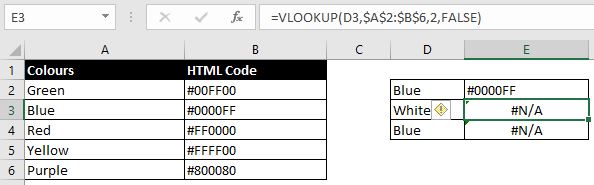
- "White" isn't in the list of colours in the table, so it returns #NA.
- In the second example, blue is in the table but VLOOKUP still shows #NA — because there's a trailing space after "blue ". Use TRIM to remove leading/trailing spaces, or set up a dropdown box to limit what users can enter.
#VALUE
#VALUE means something's wrong with your function. It's a broad error, so check which formula you're using first.
VLOOKUP
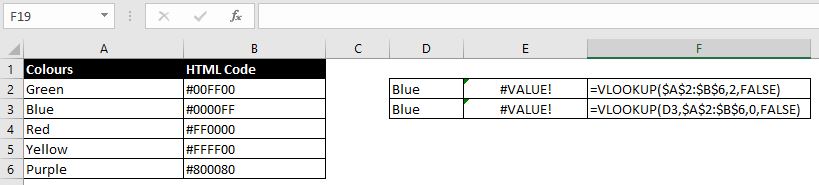
- The lookup value is missing at the start — VLOOKUP matches one referenced cell against a table, not a whole array. Fix: =VLOOKUP(D2, $A$2:$B$6, 2, FALSE)
- #VALUE also appears when your column index number is 0, or higher than the number of columns in the referenced table.
Addition / subtraction / multiplication / division
This happens when the formula references a cell that isn't a number — even if it looks like one. Extra characters ("11,33") or embedded spaces ("12 345") can stop Excel recognising it as a number. Check with ISNUMBER: TRUE means Excel sees it as a number, FALSE means it doesn't.
#REF
#REF appears when a referenced cell or range is no longer valid — usually because it was deleted. There's a difference between deleting cells (which shifts adjacent cells) and clearing cells (which only removes content).
- Avoid it: get in the habit of clearing content rather than deleting cells.
- Fix it: undo immediately if you can. Otherwise, go into the formula and re-point the reference.
#NUM!
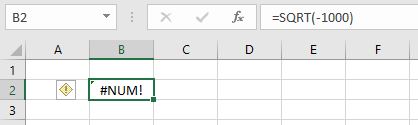
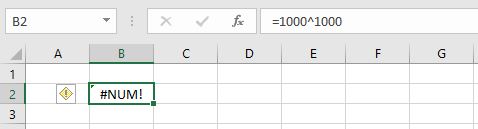
#NUM! appears when there's a problem with a number in the formula, usually because the function can't find an answer.
- Square root of a negative number.
- Result too big or too small — the largest number Excel allows is 1 followed by 308 zeroes. Try =10^309 and you'll get #NUM.
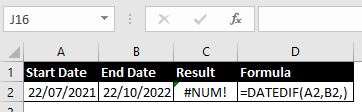
- Missing information in the formula — e.g. DATEDIF needs a third argument specifying years/months/days. Leave it blank and you get #NUM.
#NAME
A few common causes:
- Typo in the formula or function name.
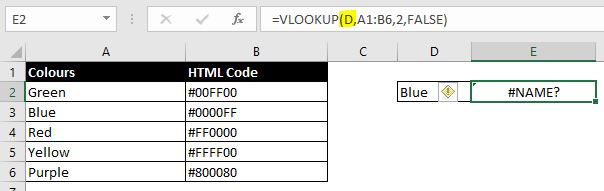
- Missing quotation marks around text in a formula.
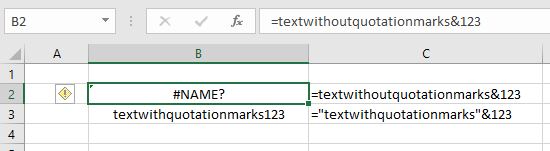
- A named reference that doesn't exist — press F3 to see the list of named references instead of typing them from memory, check Formula > Name Manager to confirm it was actually created, and double-check spelling.
#NULL!
Check for a missing space, comma, or colon in the formula:
| Formula | Problem |
|---|---|
| =SUM(D7 D16) | Colon missing between D7 and D16 |
| =SUM(C7:C16 D7:D16) | Comma missing between the two ranges |
| =D7+D8 D9 | Space between D8 and D9 needs a math operator |
Circular referencing
Circular referencing happens when a formula's calculation includes the cell it's in — creating an infinite loop, e.g. A3 = A1 + A2 + A3. Excel usually warns you immediately.
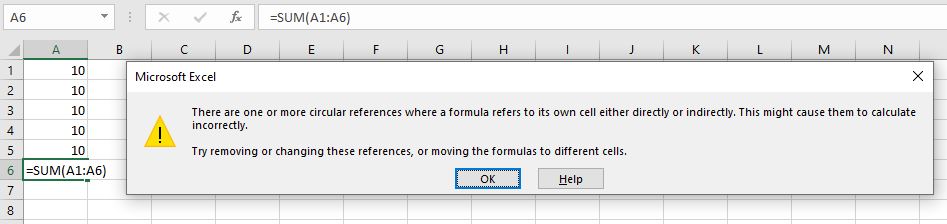
If you dismiss the warning without reading it, the formula returns 0 instead of an obvious error. Check via Formula tab > Error Checking > Circular References.

#DIV/0
Self-explanatory: this happens when you divide a number by zero. Dividing A by B splits A into B parts — and you can never split something into zero parts.
#SPILL
#SPILL appears when a formula's result needs multiple cells, but some of those cells already contain data — common with VLOOKUP or MATCH using a range as the lookup value.
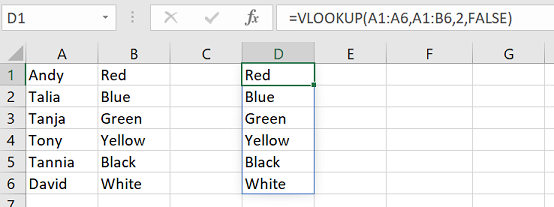
If cells in the spill range already contain data, Excel can't place the results there:
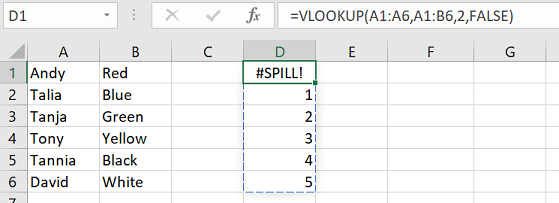
Fix: clear the data in those cells so nothing blocks the result.
######
This appears when the column isn't wide enough to display the value. Widen the column and the error disappears.
Has this page answered your question? If not, let us know what's missing and we'll add it.
Get in touch